Whether you are labeling packages for a growing Amazon FBA business, prepping Noon FBN shipments, or managing inventory tracking for a fleet of delivery vans, manually typing SKUs into a label printer is a massive drain on your operational efficiency.
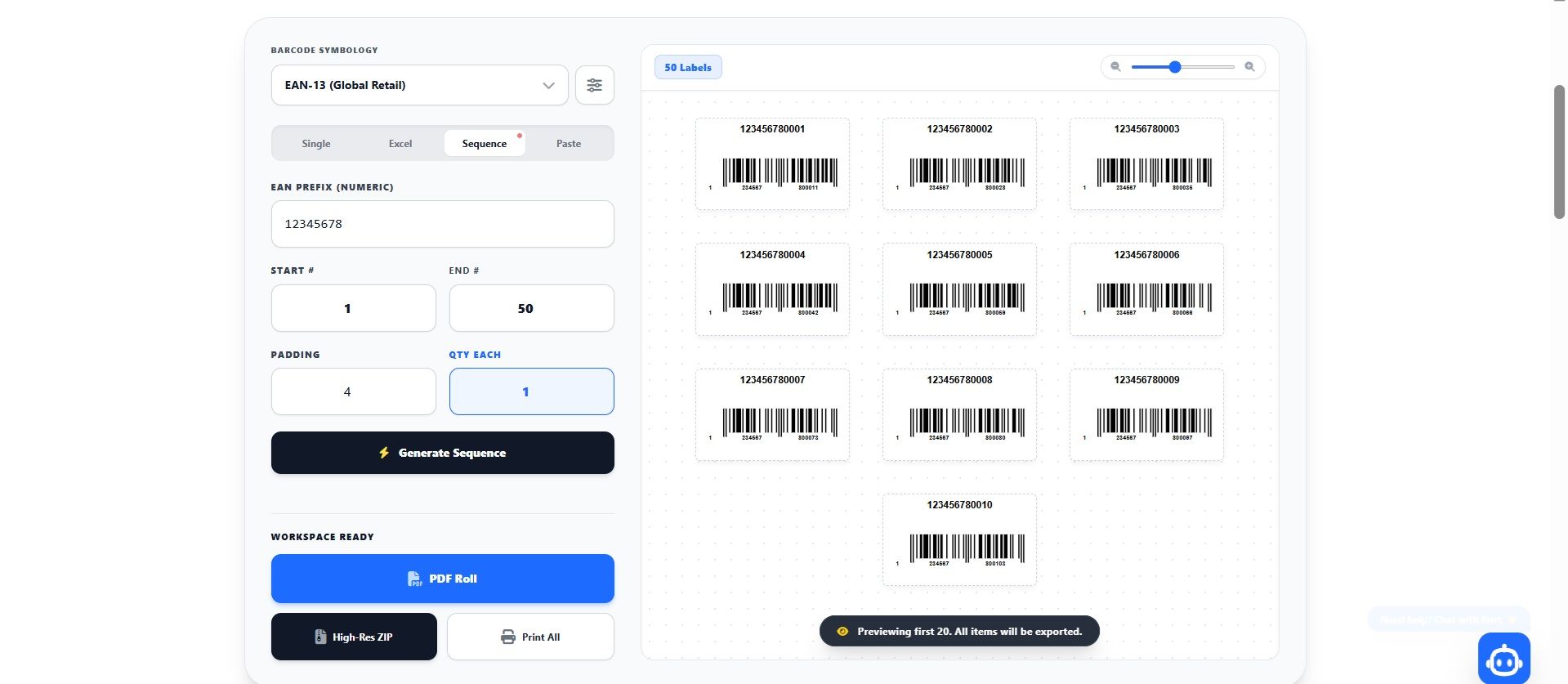
The BulkBarcode Workspace instantly visualizes raw spreadsheet data.
The secret to scaling your logistics operations lies in the software you already use every day: Microsoft Excel. By pairing your spreadsheets with a powerful bulk barcode generator, you can transform hours of tedious warehouse labor into a five-second automated workflow.
In this comprehensive guide, we will teach you exactly how to format your data, choose the right symbology, and use an Excel Barcode Generator to print perfectly aligned, high-resolution labels for your thermal printers. Let’s dive in.
Understanding the Excel Barcode Workflow
Before we open the software, it is vital to understand how a batch barcode generator processes data. When you export an inventory list from Shopify, WooCommerce, or your Enterprise Resource Planning (ERP) system, you are left with a massive grid of raw data. The barcode generator acts as a bridge—it reads that grid, extracts the relevant identifiers, and visually translates them into vertical black and white lines that a laser scanner can read instantly.
To do this successfully, your Excel file (`.xlsx` or `.csv`) must be structured in a way that the software can parse. Modern tools utilize intelligent client-side algorithms to find your data, meaning you rarely have to adhere to rigid, complex templates. You simply need clear column headers.
Pro Tip: Test Before You Scale
If you only have a few items to test before running a massive 5,000-row spreadsheet, you can always test your layout using our Free Barcode Generator to ensure your scanner reads the physical print perfectly.
Step 1: Preparing Your Excel Format
The foundation of a successful batch generation is a clean spreadsheet. Open Excel, Google Sheets, or Apple Numbers. You will want to create three specific columns in the first row (the Header row).
Here is exactly how your spreadsheet should look to ensure perfect parsing:

| A: SKU (or Barcode/ID) | B: Title (Product Name) | C: Qty (Quantity) |
|---|---|---|
| TSHIRT-BLU-MED | Premium Cotton T-Shirt - Blue (M) | 50 |
| MUG-WHT-001 | Ceramic Coffee Mug - White | 120 |
| 9780201390115 | Inventory Log Book v2 | 15 |
Understanding the Data Columns:
- SKU / Barcode (Required): This is the explicit data that will be encoded into the barcode lines. It can be letters, numbers, or dashes depending on your format (e.g., Code-128 allows letters, UPC does not).
- Title (Recommended): This is the human-readable text that will print above the barcode. It ensures your warehouse prep staff knows exactly what item the sticker belongs to without needing to blindly scan it.
- Qty (Optional): This tells the barcode generator in bulk exactly how many physical copies of this specific label to print. In the example above, the system will automatically generate 50 consecutive labels for the Blue T-Shirt, followed immediately by 120 labels for the Mug.
Step 2: Uploading to the Bulk Barcode Generator
Once your file is saved as an `.xlsx` or `.csv`, it is time to generate the visual labels. Because our platform uses secure client-side rendering, your data is processed directly in your browser window.
- Navigate to the Data Source panel on the left side of the workspace.
- Click on the Excel tab.
- Click the upload dropzone or drag-and-drop your saved spreadsheet directly into the browser.
- The Magic Moment: The system's algorithm will instantly scan your file, detect the headers, and map the quantities. Within milliseconds, a real-time preview of your massive print job will populate in the center grid.
Step 3: Configuring Your Print Settings
Seeing the barcodes on your screen is only half the battle; ensuring they print perfectly on your specific label rolls is where most businesses struggle with margin drift. You must configure the physical sizing.
- Select the Barcode Format: If your internal SKUs use letters, you must select Code-128. If your data consists of pure 12-digit or 13-digit numbers meant for retail store scanning, select UPC-A or EAN-13.
- Physical Label Sizing: Measure the physical thermal stickers inside your printer. Common sizes are 50x30mm for standard product inventory, or 100x150mm for shipping/freight. Select the corresponding preset, or enter custom millimeters.
- Padding & Font Adjustments: Adjust the padding to ensure the barcode lines do not bleed off the edge of the sticker. Tweak the font size so your product titles remain readable.
Step 4: Exporting the PDF or ZIP Roll
With your preview looking flawless, look to the bottom action toolbar. You now have the option to export the entire batch to your local machine.

Clicking PDF Roll will instruct the software to compile every single label (factoring in the exact quantities you requested) into a multi-page, high-resolution PDF document. Because you set the physical dimensions in Step 3, you can open this PDF, hit "Print", select your Zebra or Rollo thermal printer, and the machine will rapidly spit out a continuous, perfectly aligned roll of stickers.
Alternatively, if you are sending these barcodes to a manufacturer overseas or a graphic designer for retail product packaging, you can select the Bulk ZIP option. This will download a compressed folder containing thousands of individual, transparent `.png` image files neatly named after their respective SKUs.
Unlock Unlimited Batch Generation
Need to process enterprise spreadsheets with 10,000+ rows? Our premium infrastructure handles massive logistics operations without crashing your browser.
View Upgrade PlansCommon Data Formatting Mistakes to Avoid
Even with the best software, bad data will yield bad results. Keep an eye out for these frequent pitfalls when using a batch barcode generator:
- Using the wrong format for letters: As mentioned, UPC and EAN formats physically cannot encode alphabet characters. If your Excel cell contains "BOX-12A", and you select UPC, the software will throw an error. Always default to Code-128 for internal alphanumeric SKUs.
- Missing Header Rows: Ensure row 1 of your spreadsheet actually contains the words "SKU", "Title", etc. If your raw product data starts on row 1, the software might mistakenly read your first product as the column header.
- Tiny Dimensions with Long Text: If your product title is "Super Deluxe Premium Organic Cotton Bathrobe Summer Collection", and you are trying to print it on a tiny 40x20mm sticker, the text will shrink to an unreadable microscopic size. Keep your Excel titles concise.
Stop fighting with outdated desktop software and manual data entry. Structure your spreadsheet, upload it to the secure workspace, and let the automation do the heavy lifting for your distribution workflow today.
Frequently Asked Questions
Can I import an Excel file directly into a bulk barcode generator?
Yes, you can drag and drop any standard .xlsx or .csv file directly into the workspace. The system will automatically parse your SKUs, Titles, and Quantities without requiring complex API connections.
What columns are required in the Excel file?
The only strictly required column is one containing your product identifiers (SKU, Item, or Barcode). However, for the best results, we heavily recommend including a 'Title' column for the product name and a 'Qty' column to specify how many of each label to print.
Which barcode format should I choose?
For general inventory, warehouse tracking, and alphanumeric SKUs (containing both letters and numbers), you must use Code-128. If you are printing retail tags meant to be scanned at standard store registers, use UPC-A (12 digits) or EAN-13 (13 digits).
How do I print the generated PDF roll?
Once you download the PDF, open it in Chrome or Adobe Reader. Click Print, select your thermal printer (e.g., Zebra, Dymo), and ensure your paper size matches the dimensions you set in the generator (like 50x30mm). Make sure "Fit to Page" or "Scale" settings are turned off so the barcode doesn't distort.
Is my inventory data secure?
Yes. Modern web-based generators process the Excel parsing and image generation locally within your browser. Your proprietary SKU lists and product titles are not permanently stored on remote servers, ensuring your business data remains entirely private.