 Sohail Ahmad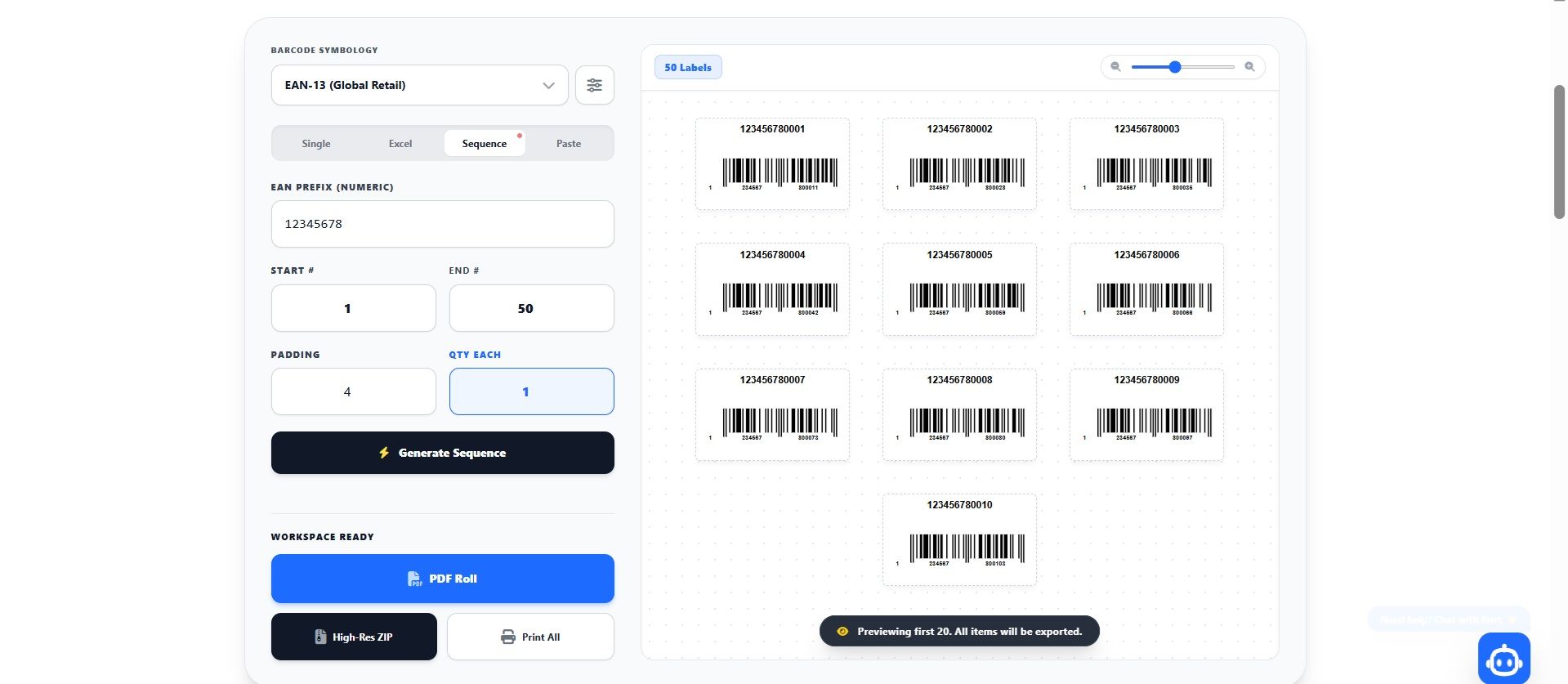
Table des matières
Que vous gériez une boutique e-commerce en croissance, un centre de traitement des commandes occupé, ou que vous développiez une activité Amazon FBA depuis Riyad ou des hubs mondiaux, votre efficacité dépend entièrement de l'harmonie parfaite entre votre matériel et votre logiciel. Vous pouvez avoir le meilleur système d'inventaire numérique au monde, mais si vos étiquettes physiques ne scannent pas, vos opérations s'arrêteront. Passer des imprimantes de bureau standard à une imprimante thermique de codes-barres en masse dédiée est la mise à niveau matérielle la plus importante qu'une entreprise en croissance puisse faire.
Cependant, le matériel seul ne suffit pas. Une imprimante Zebra ou Rollo à haute vitesse est inutile sans un générateur de codes-barres en masse fiable l'alimentant en données PDF parfaitement formatées. Dans ce guide complet, nous allons détailler exactement le matériel dont vous avez besoin, comment comprendre le dimensionnement complexe des étiquettes, et le flux de travail ultime de bout en bout.
1. Types d'Imprimantes (Thermique vs. Jet d'Encre)
De nombreux propriétaires de petites entreprises commettent l'erreur critique d'essayer d'imprimer des codes-barres avec leur imprimante jet d'encre ou laser de bureau standard, en utilisant des feuilles d'autocollants Avery de 8,5x11". Si cela fonctionne pour un amateur occasionnel, c'est un désastre pour une entreprise en croissance expédiant via FedEx ou Noon FBN.
Les imprimantes jet d'encre projettent de l'encre liquide sur la page. Cette encre est très sujette au bavage à cause de l'humidité d'entrepôt, des mains moites, ou du frottement pendant le transport. De plus, les bords des lignes imprimées subissent souvent un "bavage", réduisant le contraste net noir et blanc requis pour qu'un scanner laser d'entrepôt lise le code-barres. Enfin, l'encre jet d'encre devient exorbitante lorsque vous commencez à imprimer des milliers d'étiquettes par mois.
La solution standard du secteur est une imprimante thermique de codes-barres en masse. Les imprimantes thermiques n'utilisent pas de cartouches d'encre liquide. Elles utilisent plutôt une tête d'impression chauffée pour créer des images. Il existe deux types principaux d'imprimantes thermiques :
Imprimantes à Thermique Directe
L'impression thermique directe utilise du papier autocollant thermosensible traité chimiquement. Lorsque le papier passe sur la tête d'impression chauffée, le papier lui-même noircit là où la chaleur est appliquée.
- Avantages : Aucune encre ni toner requis. Vous ne payez que les rouleaux d'autocollants vierges. Elles sont incroyablement rapides, très abordables et simples à entretenir.
- Inconvénients : Le papier étant thermosensible, les étiquettes peuvent s'estomper si elles sont exposées à la lumière directe du soleil ou à une chaleur extrême pendant des périodes prolongées (6 à 12 mois).
- Idéal pour : Étiquettes Amazon FBA, suivi d'inventaire d'entrepôt à court terme, étiquettes d'expédition, et exécution e-commerce générale. (C'est ce dont ont besoin 95 % des petites entreprises).
Imprimantes à Transfert Thermique
L'impression par transfert thermique utilise un ruban solide de résine ou de cire. La tête d'impression chauffée fait fondre le ruban directement sur la surface de l'étiquette.
- Avantages : Le code-barres obtenu est pratiquement indestructible. Il résiste à la décoloration, à l'eau et aux rayures, durant des années dans des environnements difficiles.
- Inconvénients : Le matériel est plus cher, et vous devez constamment acheter et remplacer les rouleaux de ruban en plus du papier autocollant.
- Idéal pour : Suivi d'actifs à long terme, étiquetage d'équipements en extérieur, et produits stockés dans des environnements extrêmes.
Commencez à Imprimer Immédiatement
Si votre imprimante thermique est déjà branchée, vous pouvez tester l'alignement de votre matériel en générant un lot test dans notre espace de travail.
Générer et Imprimer un Lot Test2. Décoder les Tailles d'Étiquettes et le DPI
Une fois que vous avez une imprimante de codes-barres en masse sur votre bureau, vous devez la charger avec le bon support. Les étiquettes thermiques se présentent en rouleaux continus ou en piles pliées en éventail, et leurs dimensions physiques sont cruciales pour la configuration de votre logiciel.
Dimensions d'Étiquettes Courantes
- 50mm x 30mm (env. 2" x 1,2") : C'est le standard absolu pour l'inventaire de produits et l'étiquetage SKU. Il offre juste assez d'espace vertical pour un code-barres scannable Code-128 ou UPC-A, avec suffisamment de place en haut pour un titre de produit concis.
- 40mm x 20mm (env. 1,5" x 0,75") : Idéal pour les petits articles comme les cosmétiques, les étiquettes de bijoux ou la petite électronique. Vous devrez vous assurer que les lignes de votre code-barres sont relativement denses pour rester scannables à cette petite taille.
- 100mm x 150mm (4" x 6") : Le standard mondial pour les étiquettes d'expédition (UPS, FedEx, USPS). Bien que rarement utilisé uniquement pour les codes-barres, vous pouvez tout à fait utiliser cette taille pour imprimer des étiquettes de palette massives pour les expéditions en conteneur.
L'Importance du DPI (Points Par Pouce)
La plupart des imprimantes thermiques d'entrée de gamme impriment en 203 DPI. C'est parfaitement adapté aux étiquettes standard de 50x30mm et aux codes-barres Amazon FBA de base. Cependant, si vous imprimez des données de codes-barres en masse très denses et complexes sur de minuscules autocollants de 40x20mm, une imprimante 203 DPI pourrait faire fusionner les lignes verticales entre elles, les rendant illisibles. Pour une précision microscopique, il faudra investir dans une imprimante commerciale 300 DPI ou 600 DPI.
3. Le Flux de Travail du Logiciel au Matériel
Vous avez votre imprimante Rollo ou Zebra, vos étiquettes de 50x30mm sont chargées. Maintenant, comment faire passer des milliers de produits de votre ordinateur à ces autocollants physiques ? C'est là que le logiciel générateur de codes-barres en masse devient votre meilleur allié. Suivez exactement ce flux de travail :
1. Préparez Vos Données
Exportez votre inventaire depuis votre plateforme e-commerce (comme Shopify ou Salla) sous forme de fichier Excel (`.xlsx`). Assurez-vous d'avoir une colonne claire pour votre "SKU" et votre "Titre". Si vous souhaitez imprimer plusieurs exemplaires de certaines étiquettes, créez une colonne "Quantité".
2. Téléchargez vers le Générateur
Ouvrez votre
Cliquez sur "Télécharger le Rouleau PDF". Ouvrez le document obtenu dans Adobe Acrobat ou Google Chrome. Appuyez sur `Ctrl+P` (ou `Cmd+P`), et sélectionnez votre imprimante thermique.
RÉGLAGE MATÉRIEL CRITIQUE : Lorsque la boîte de dialogue d'impression s'ouvre, cherchez les options de mise à l'échelle. Assurez-vous que "Ajuster à la page" ou "Mettre à l'échelle" soit DÉSACTIVÉ. Vous devez imprimer exactement à 100 % d'échelle (Taille réelle). Les imprimantes thermiques sont incroyablement précises ; si Adobe tente de réduire le code-barres, même de 2 %, cela peut déformer l'espacement mathématique des lignes du code-barres, provoquant des échecs de scanner laser.
Si vous montez votre poste d'entrepôt de zéro aujourd'hui, voici la combinaison exacte de matériel et de logiciel que nous recommandons pour une efficacité maximale et un coût minimal :
Vous venez de télécharger un code FNSKU parfait. Il est net à l'écran. Vous imprimez 5 000 copies, vous les envoyez à Amazon et vous recevez un e-mail : "Inventaire non scannable."
Que s'est-il passé ? Contrairement aux imprimantes de bureau, les imprimantes thermiques utilisent la chaleur. Si vos paramètres de chaleur et de vitesse ne sont pas calibrés, les lignes se déformeront.
Deje de reinstalar controladores. Siga estos pasos de mantenimiento físico para restaurar la confiabilidad de su hardware.
Si su impresora salta etiquetas, ha perdido la dimensión. En Zebra: Mantenga presionado el botón FEED hasta que la luz parpadee dos veces. En Rollo: Mantenga presionado el botón superior hasta que suene una vez. La impresora se recalibrará.
Si un código se ve grueso pero no se escanea, su cabezal está demasiado caliente. El sangrado térmico ocurre cuando el calor alto hace que las barras negras se expandan hacia los espacios blancos. Baje el ajuste de "Oscuridad" o "Calor" un 15%.
Si sus códigos tienen líneas blancas verticales, el cabezal está sucio. El papel térmico crea polvo. Apague la impresora y limpie la línea de vidrio con un hisopo bañado en alcohol isopropílico al 99%.
A veces, el problema es el software escalando incorrectamente el código de barras. Suelte su archivo Excel en nuestro generador para exportar un rollo PDF matemáticamente perfecto.
Avant d'acheter une imprimante, vous devez comprendre la technologie sous-jacente. La plus grande erreur que font les nouveaux responsables logistiques est d'acheter le mauvais type d'imprimante thermique pour leur environnement de travail. Utilise la chaleur pour activer les produits chimiques directement sur le papier. Ne nécessite ni encre ni ruban (Ribbon). Utilise la chaleur pour faire fondre un ruban de cire/résine (Ribbon) directement sur l'étiquette en papier.
Si vous entrez dans un centre de distribution Amazon ou un centre logistique d'une grande entreprise, vous verrez des rangées d'imprimantes Zebra. Elles sont construites comme des chars d'assaut. Bien que l'interface logicielle semble datée, le matériel durera littéralement une décennie. Elle parle nativement le langage ZPL, la référence pour les systèmes ERP d'entreprise. Elle gère nos opérations de génération de codes-barres séquentiels sans aucun problème.
Rollo a révolutionné le marché en se concentrant entièrement sur les vendeurs e-commerce et les PME. L'avantage principal est qu'elle ne vous oblige pas à acheter des étiquettes propriétaires. Vous pouvez acheter d'énormes paquets d'étiquettes 4x6 génériques et bon marché sur Amazon, et Rollo les calibrera et les imprimera parfaitement. Associée à notre rouleau PDF continu, c'est un outil redoutable.
Dymo offre l'expérience la plus proche des produits "Apple". Le logiciel est incroyablement intuitif pour les débutants. Cependant, il y a un problème : la 5XL utilise un système de puce RFID qui vous oblige à n'acheter que des étiquettes Dymo originales. Si vous essayez d'utiliser des étiquettes génériques bon marché, l'imprimante refusera d'imprimer. C'est excellent pour les faibles volumes, mais les coûts récurrents du papier sont élevés.
La série Brother QL possède un énorme avantage sur la concurrence : un massicot automatique intégré. Cela signifie que vous pouvez utiliser un rouleau de papier continu, et l'imprimante coupera automatiquement l'étiquette à la longueur exacte de vos données. C'est parfait si vous imprimez de petits codes-barres de produits d'un pouce à côté d'énormes étiquettes d'expédition de six pouces le même jour.
Si elle n'est pas nettoyée, cette résidu agit comme un isolant. La tête d'impression tentera de pousser plus de chaleur à travers la barrière pour activer le papier, finissant par se griller et provoquant des lignes verticales mortes sur tous vos codes-barres.
Lors de la transmission de données de votre ordinateur à votre imprimante, il existe deux méthodes principales : ZPL (Zebra Programming Language) et PDF.
Les systèmes hérités dépendent fortement du ZPL. Le ZPL envoie des coordonnées brutes à l'imprimante (par exemple, "Dessine une ligne à X:10, Y:20"). Bien qu'incroyablement rapide et léger, le ZPL est notoirement difficile à coder, tester, et prévisualiser sans imprimante physique présente. Si vous faites une erreur de syntaxe dans votre code ZPL, l'imprimante crache simplement du papier vierge.
Les flux de travail SaaS modernes migrent vers le Rendu PDF Natif. En générant un PDF précalibré, les responsables des opérations peuvent vérifier visuellement les dimensions exactes du code-barres, le remplissage du SKU, et le formatage directement dans leur navigateur avant d'envoyer un seul octet à l'imprimante. Tant que le PDF est rendu comme un graphique vectoriel (plutôt qu'une image rastérisée), l'imprimante thermique le lira avec exactement la même précision que le ZPL brut.
L'achat d'une imprimante haut de gamme n'accélérera pas votre entrepôt si vous continuez à copier et coller manuellement les numéros de suivi et les SKU dans Microsoft Word un par un. Le logiciel que vous utilisez pour créer les codes-barres est tout aussi important que le matériel qui les imprime.
L'exécution à haut volume nécessite un moteur de génération dédié capable de lire des manifestes CSV ou Excel massifs, de formater dynamiquement les données en chaînes conformes GS1, et de rendre un rouleau PDF précalibré correspondant aux dimensions exactes en millimètres de votre matériel.
Pour éviter les erreurs d'impression floues et crénelées, vous devez exporter vos étiquettes en PDF vectoriels continus plutôt qu'en JPG rastérisés. Vous pouvez automatiser tout ce processus instantanément en téléversant votre feuille Excel directement dans notre Espace de Travail BulkBarcode.
Vous générez une étiquette parfaite, vous l'imprimez. Trois semaines plus tard, l'entrepôt vous appelle : "Vos codes-barres sont vierges".
La majorité des étiquettes bon marché utilisent la technologie thermique directe. Le papier noircit à la chaleur. S'il est exposé au soleil ou à un camion chaud, le papier entier réagit et le code est détruit.
N'achetez pas d'imprimante à transfert thermique pour des étiquettes d'expédition temporaires, mais ne risquez pas votre inventaire FBA sur du papier bon marché. Idéal pour les étiquettes FedEx/UPS (durée de vie de 7 à 14 jours). C'est moins cher et sans ruban. Obligatoire pour les étiquettes Amazon FBA, les rayonnages d'entrepôt et le stockage à long terme (résine/cire). Si vous avez une imprimante thermique directe, achetez des étiquettes Topcoat. Elles possèdent un bouclier chimique invisible contre les UV.
Que vous utilisiez une imprimante à 100$ ou à 1500$, le fichier source compte. Déposez votre inventaire pour exporter un rouleau PDF. 4. Téléchargez et Imprimez
4. Notre Configuration Recommandée pour 2026
Résoudre le problème des
Imprimantes Thermiques
Pourquoi des codes parfaits échouent dans le monde réel.
Los 3 Pilares de la Calibración
1. Reinicie el Sensor de Separación
2. Arregle el "Sangrado Térmico"
3. Limpieza con Alcohol Isopropílico
Evite Errores de Controladores
Les 4 meilleures imprimantes thermiques pour le e-commerce (Guide 2026)
Impression Thermique Directe vs. Transfert Thermique
Impression Thermique Directe
Transfert Thermique
Revue des 4 meilleures imprimantes thermiques
Zebra ZD621 (La Référence Entreprise)
Rollo Wireless (Idéal pour les Boutiques en Croissance)
Dymo LabelWriter 5XL (Configuration la Plus Simple)
Brother QL-1110NWB (Le Plus Polyvalent)
Entretien Essentiel de la Tête d'Impression Thermique
ZPL vs. Rendu PDF Natif
Le secret d'un flux de travail à grande vitesse
Codes-barres effacés ?
Thermique Direct vs Transfert
L'illusion de "l'impression parfaite".
Choisir le bon matériau
Quand utiliser le Thermique Direct
Quand utiliser le Transfert Thermique
Le compromis "Topcoat"
Générez des vecteurs parfaits
5. FAQ de Dépannage
Puis-je utiliser une imprimante jet d'encre classique pour des codes-barres en masse ?
Quelle est la meilleure imprimante de codes-barres en masse pour débutants ?
Comment formater mes étiquettes dans un générateur de codes-barres en masse ?
Pourquoi mes codes-barres thermiques s'impriment-ils flous ?
Quelle est la différence entre Thermique Directe et Transfert Thermique ?
Pourquoi mes codes-barres thermiques sont-ils flous ?
Dois-je exporter en PNG ou PDF ?
Pourquoi mon imprimante Zebra imprime-t-elle des étiquettes décolorées ?
Pourquoi mon imprimante thermique éjecte-t-elle des étiquettes vierges ?
Comment réparer un code-barres thermique flou ou peu clair ?
Pourquoi mes étiquettes ont-elles jauni et se sont effacées ?
Quelle étiquette Amazon FBA exige-t-il ?