 Sohail Ahmad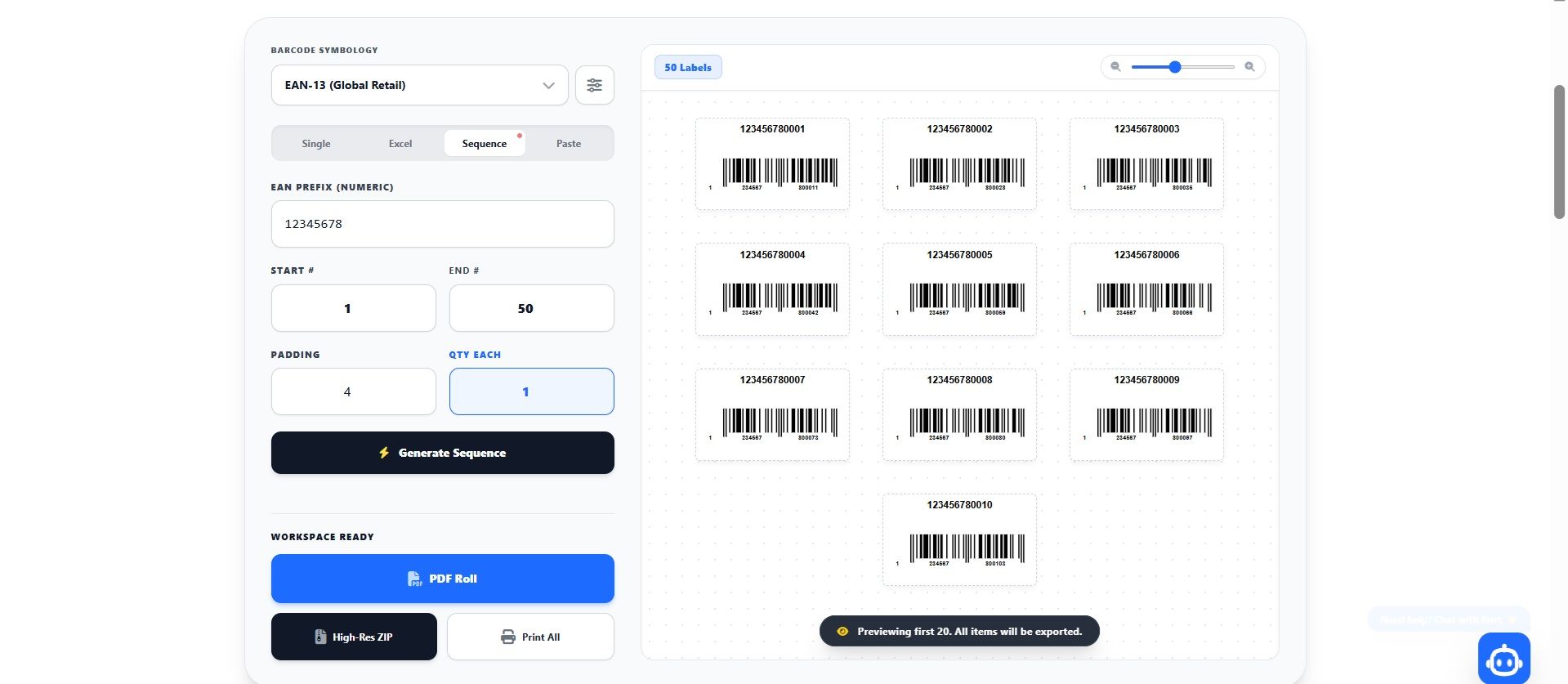
无论您经营的是不断成长的电商店铺、繁忙的履约仓库,还是正在从利雅得或全球枢纽扩展亚马逊FBA业务,您的运营效率都完全取决于硬件与软件能否完美协同。您可以拥有全世界最好的数字库存系统,但如果实体标签无法扫描,您的运营就会陷入停滞。从标准办公打印机转向专用批量条形码热敏打印机,是成长型企业能做出的最重要的硬件升级。
然而,仅有硬件是不够的。一台高速的Zebra或Rollo打印机若没有可靠的批量条形码生成器为其提供完美格式化的PDF数据,也毫无用处。在这份完整指南中,我们将详细拆解您所需的确切硬件、如何理解复杂的标签尺寸设置,以及从头到尾的终极工作流程。
1. 打印机类型(热敏 vs. 喷墨)
许多小企业主会犯一个关键性错误:试图用标准桌面喷墨或激光打印机,配合8.5x11英寸的Avery贴纸纸打印条形码。虽然这对周末爱好者来说尚可,但对于通过FedEx或Noon FBN发货、正在扩张的企业来说无疑是一场灾难。
喷墨打印机将液态墨水喷洒在纸面上。这种墨水极易因仓库湿气、手汗或运输途中的摩擦而晕染。此外,打印线条边缘常常出现“渗墨”现象,降低了仓库激光扫描仪读取条形码所需的鲜明黑白对比度。最后,一旦每月打印数千张标签,喷墨墨水的成本将变得极其高昂。
业内标准解决方案是热敏批量条形码打印机。热敏打印机不使用液态墨盒,而是通过加热打印头来生成图像。热敏打印机主要有两种类型:
直接热敏打印机
直接热敏打印使用经过化学处理、对热敏感的贴纸纸张。当纸张经过加热的打印头时,纸张本身会在受热处变黑。
- 优点: 无需油墨或碳粉,只需为空白贴纸卷付费。速度极快、价格实惠、维护简单。
- 缺点: 由于纸张对热敏感,若长期(6-12个月)暴露在直射阳光或极端高温下,标签可能会褪色。
- 最适合: 亚马逊FBA标签、短期仓库库存追踪、运输标签,以及一般电商履约。(这正是95%小型企业所需要的。)
热转印打印机
热转印打印使用固态树脂或蜡质色带。加热的打印头将色带直接熔化到标签表面。
- 优点: 生成的条形码几乎坚不可摧,防褪色、防水、防刮,可在恶劣环境中使用多年。
- 缺点: 硬件成本更高,且除了贴纸纸张外,您还必须不断购买并更换色带卷。
- 最适合: 长期资产追踪、户外设备标签,以及存放在极端环境中的产品。
2. 解读标签尺寸与DPI
一旦您的桌面上有了批量条形码打印机,就需要为其装入正确的耗材。热敏标签有连续卷装或折叠堆装两种形式,其物理尺寸对您的软件设置至关重要。
常见标签尺寸
- 50mm x 30mm(约2英寸 x 1.2英寸): 这是产品库存和SKU标签的绝对标准尺寸,为可扫描的Code-128或UPC-A条形码提供恰好足够的垂直空间,顶部也留有足够空间显示简洁的产品名称。
- 40mm x 20mm(约1.5英寸 x 0.75英寸): 适合化妆品、珠宝吊牌或小型电子产品等较小物品。您需要确保条形码线条相对密集,才能在如此小的尺寸下依然可扫描。
- 100mm x 150mm(4英寸 x 6英寸): 运输标签的全球通用标准(UPS、FedEx、USPS)。虽然很少仅用于条形码,但您完全可以用这个尺寸为集装箱货运打印大型托盘标签。
DPI(每英寸点数)的重要性
大多数入门级热敏打印机的输出分辨率为203 DPI。这对于标准的50x30mm标签和基础的亚马逊FBA条形码来说完全足够。但是,如果您要在40x20mm的微型贴纸上打印非常密集、复杂的批量条形码数据,203 DPI打印机可能会使竖线相互粘连,导致无法扫描。如果需要极致精度,则需要投资一台300 DPI或600 DPI的商用打印机。
3. 从软件到硬件的工作流程
您已经准备好Rollo或斑马打印机,也装好了50x30mm的标签。那么,如何将数千个产品从电脑传送到这些实体贴纸上呢?这正是批量条形码生成器软件大显身手的地方。请按照以下确切的工作流程操作:
1. 准备您的数据
将您的库存从电商平台(如Shopify或Salla)导出为Excel(`.xlsx`)文件。请确保有清晰的“SKU”列和“标题”列。如果您想为某些标签打印多份,请再创建一个“数量”列。
2. 上传至生成器
打开您的4. 我们为2026年推荐的配置
如果您今天要从零开始搭建仓库工作站,以下是我们推荐的硬件与软件精确组合,可实现最高效率与最低成本:
您刚刚为 Amazon 下载了一个格式完美的 FNSKU。您使用 Zebra 打印了 5,000 份,将托盘发送到运营中心,然后收到一封毁灭性的电子邮件:“无法扫描的库存。”
发生了什么?数字文件很完美,但物理硬件毁了它。电子商务标签打印机利用热量触发纸张上的化学反应。如果您的硬件设置(暗度和打印速度)未正确校准,条形码线条物理上将会变形。
停止重新安装您的打印驱动程序。按照这些物理维护步骤恢复硬件可靠性。
如果您的打印机跳过标签,则它已失去了对标签尺寸的跟踪。对于 Zebra 打印机: 按住 FEED 按钮,直到绿灯闪烁两次,然后松开。对于 Rollo 打印机: 按住顶部按钮,直到发出一声哔声。打印机将重新校准。
如果条形码看起来很粗但无法扫描,说明打印头太热了。当高温导致黑条膨胀侵入空白区域时,就会出现热晕染。扫描仪读取的是空白区域。在您的打印机设置中将“浓度”或“热度”降低 15%。
如果条形码有垂直白线,则说明打印头脏了。热敏纸会产生覆盖在加热元件上的灰尘。关闭打印机,用蘸有 99% 异丙醇的无绒棉签轻轻擦擦拭玻璃打印头。
有时问题出在软件错误地缩放了条形码。将您的 Excel 文件拖入我们的批量生成器,导出一个数学上完美的连续 PDF 卷,从而绕过所有本地驱动程序格式错误。
在购买打印机之前,您必须了解底层技术。物流新手常犯的最大错误是,为他们的特定工作环境购买了错误类型的热敏打印机。 利用热量直接在纸张上激活化学物质。不需要墨水或碳带 (Ribbon)。 利用热量将蜡/树脂碳带 (Ribbon) 融化到标签纸上。
如果您走进 Amazon 运营中心或大型企业的物流中心,您会看到成排的 Zebra 打印机。它们像坦克一样坚固。虽然软件界面看起来有点过时,但硬件实际上可以用上十年。它原生支持 ZPL(Zebra 编程语言),这是企业 ERP 系统的黄金标准。它可以完美配合我们的顺序条码生成操作,顺畅无比。
Rollo 通过完全专注于电商卖家和中小企业颠覆了市场。它最大的优势是不会强迫您购买专有标签。您可以在 Amazon 上购买大量廉价的通用 4x6 标签,Rollo 会完美地校准并打印它们。结合我们的连续 PDF 卷,它是一个强大的工具。
Dymo 提供了最接近“苹果”产品的体验。对于初学者来说,软件极其直观。然而,有一个缺陷:5XL 使用了 RFID 芯片系统,迫使您只能购买昂贵的 Dymo 原装标签。如果您尝试放入便宜的通用标签,打印机将拒绝打印。它非常适合低打印量,但长期的纸张成本很高。
Brother QL 系列相对于竞争对手有一个巨大的优势:内置自动切刀。这意味着您可以使用连续的纸卷,打印机会根据您的数据自动将标签裁剪成精确的长度。如果您要在同一天打印1英寸的微型产品条码和6英寸的巨大发货标签,这简直完美。
如果不清洁,这些残留物会起到隔热作用。打印头会试图通过该阻隔层施加更多热量以激活纸张,最终导致自身烧毁,并在您所有的条形码上留下无法打印的竖直死线。
从电脑向打印机传输数据时,主要有两种方法:ZPL(斑马编程语言)和PDF。
传统系统高度依赖ZPL。ZPL向打印机发送原始坐标指令(例如“在X:10, Y:20处绘制一条线”)。虽然速度极快、体积轻巧,但众所周知,在没有实体打印机的情况下,ZPL的编码、测试和预览都非常困难。如果您的ZPL代码出现语法错误,打印机只会吐出空白纸张。
现代SaaS工作流正在向原生PDF渲染迁移。通过生成预校准的PDF,运营经理可以在向打印机发送任何数据之前,直接在浏览器中直观地核实精确的条形码尺寸、SKU留白和格式。只要PDF以矢量图形(而非光栅化图像)的形式渲染,热敏打印机就能以与原始ZPL完全相同的精度读取它。
如果您仍然在 Microsoft Word 中逐个手动复制和粘贴运单号和 SKU,购买高级打印机并不会加快您的仓库速度。您用来生成条码的软件与打印条码的硬件一样重要。
大批量履约需要一个专用的生成引擎,能够读取海量的CSV或Excel清单,将数据动态格式化为符合GS1标准的字符串,并渲染出与您硬件毫米级尺寸精确匹配的预校准PDF卷。
为避免出现模糊、锯齿状的打印错误,您必须将标签导出为连续的矢量PDF,而非光栅化的JPG图像。您可以通过将Excel表格直接上传到我们的BulkBarcode工作区,即时实现整个流程的自动化。
您生成了一个完美的标签,打印并贴在托盘上。三周后,仓库打电话给您:“您的条形码是空白的。”
大多数廉价的运输标签使用直接热敏技术。纸张经过化学处理,遇热变黑。如果暴露在阳光下或闷热的卡车中,整个标签会变黑或变黄,条形码将被破坏。
硬件很贵。不要在临时标签上浪费热转印机,也不要在 Amazon FBA 库存上冒险使用廉价的热敏纸。 适用于:FedEx/UPS 运输标签或临时票据(仅需存活 7-14 天)。它更便宜且无需碳带。 适用于:Amazon FBA 贴纸、仓库货架标签或长期存储(使用树脂/蜡基碳带)。完全防热和防晒。 如果您已经购买了热敏打印机,则必须购买带顶涂层的热敏标签。它们具有化学保护层,可减缓紫外线褪色。
无论您使用的是便宜的 Rollo 还是昂贵的 Zebra,源文件都很重要。在我们的批量生成器中导出完美的 PDF 卷。
修复“无法读取”的
热敏打印机故障
为什么 100% 合规的条形码在现实世界中会失败。
打印机校准的 3 个支柱
1. 重置间隙传感器
2. 修复“热晕染”(热度/浓度)
3. 异丙醇清洁
绕过打印机驱动程序错误
适合电商的4款最佳热敏打印机 (2026指南)
热敏 (Direct Thermal) vs. 热转印 (Thermal Transfer)
热敏 (Direct Thermal)
热转印 (Thermal Transfer)
4款最佳热敏打印机评测
Zebra ZD621(企业级标准)
Rollo Wireless(最适合扩展店铺规模)
Dymo LabelWriter 5XL(设置最简单)
Brother QL-1110NWB(最为多功能)
热敏打印头的基本维护
ZPL与原生PDF渲染对比
高速工作流的秘诀
条形码标签褪色?
直接热敏 VS 热转印
“完美打印”的错觉。
选择正确的材料
直接热敏的使用场景
热转印的使用场景
Topcoat 顶涂层
生成与软件无关的矢量图
5. 故障排除常见问题
我可以使用普通喷墨打印机来打印批量条形码吗?
适合初学者的最佳批量条形码打印机是什么?
如何在批量条形码生成器中设置标签格式?
为什么我的热敏条形码打印出来是模糊的?
直接热敏和热转印有什么区别?
为什么我的热敏条形码看起来很模糊并且无法扫描?
我应该将条形码导出为 PNG 还是 PDF 进行热敏打印?
为什么我的 Zebra 打印机会打印褪色或有条纹的标签?
为什么我的热敏打印机会输出空白标签?
如何修复模糊不清的热敏条码?
为什么我的条形码褪色变黄了?
Amazon FBA 需要哪种标签?