 Sohail Ahmad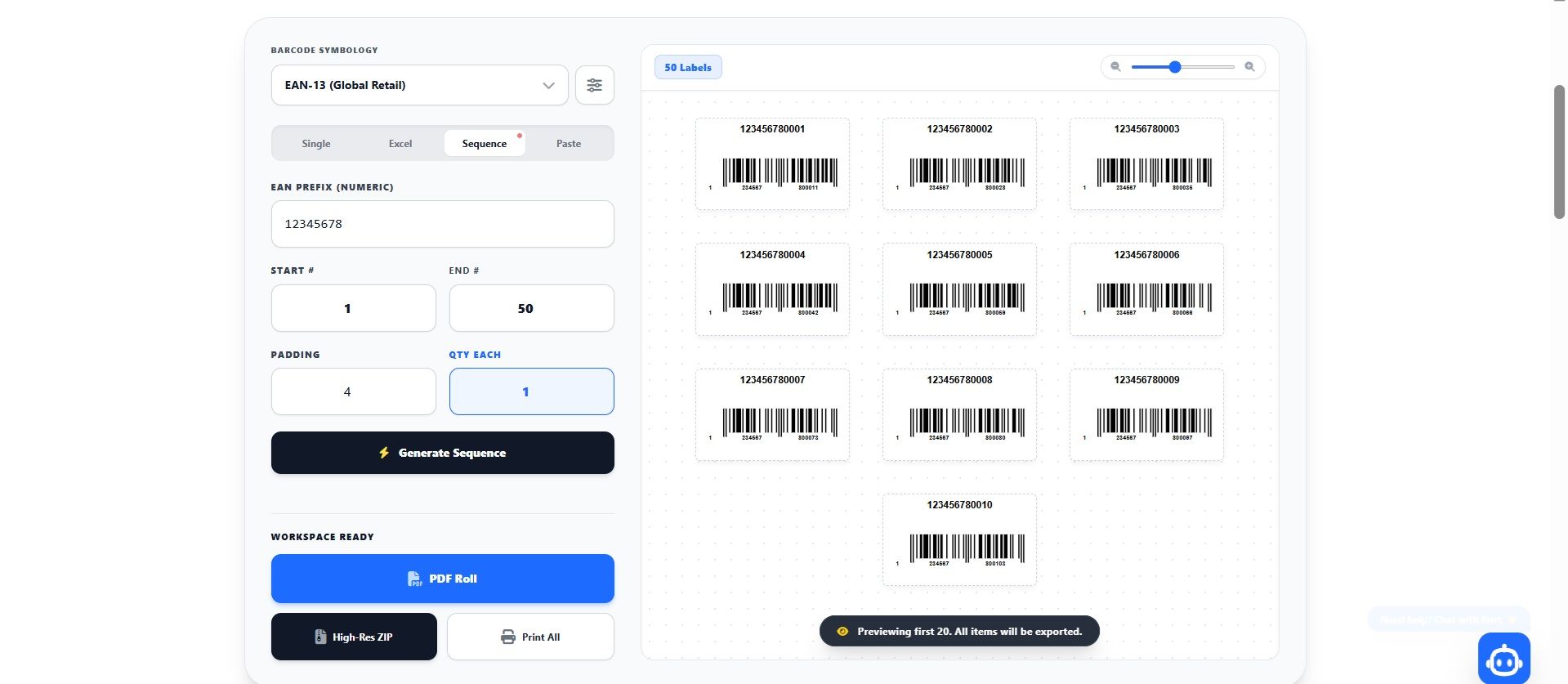
Table of Contents
If you are running a growing e-commerce store, a busy fulfillment warehouse, or scaling an Amazon FBA business out of Riyadh or global hubs, your efficiency is entirely dependent on your hardware and software working in perfect harmony. You can have the best digital inventory system in the world, but if your physical labels won't scan, your operations will grind to a halt. Transitioning from standard office printers to a dedicated bulk barcode printer is the single most important hardware upgrade a scaling enterprise can make.
However, hardware alone isn't enough. A high-speed Zebra or Rollo printer is useless without a reliable barcode bulk generator feeding it perfectly formatted PDF data. In this comprehensive guide, we are going to break down the exact hardware you need, how to understand complex label sizing, and the ultimate start-to-finish workflow for printing thousands of flawless barcodes.
1. Understanding Printer Types (Thermal vs. Inkjet)
Many small business owners make the critical mistake of trying to print barcodes using their standard desktop inkjet or laser printer using 8.5x11" sheets of Avery sticker paper. While this works for a weekend hobbyist, it is a disaster for a scaling business shipping via FedEx or Noon FBN.
Inkjet printers spray liquid ink onto the page. This ink is highly susceptible to smudging from warehouse moisture, sweaty hands, or friction during transit. Furthermore, the edges of the printed lines often experience "bleeding," reducing the stark black-and-white contrast required for a laser warehouse scanner to read the barcode. Finally, inkjet ink is exorbitantly expensive when you start printing thousands of labels a month.
The industry standard solution is a thermal bulk barcode printer. Thermal printers do not use liquid ink cartridges. Instead, they use a heated printhead to create images. There are two primary types of thermal printers:
Direct Thermal Printers
Direct thermal printing uses chemically treated, heat-sensitive sticker paper. As the paper passes over the heated printhead, the paper itself turns black where heat is applied.
- Pros: Zero ink or toner required. You only pay for the blank sticker rolls. They are incredibly fast, highly affordable, and simple to maintain.
- Cons: Because the paper is heat-sensitive, the labels can fade if left in direct sunlight or extreme heat for prolonged periods (6-12 months).
- Best For: Amazon FBA labels, short-term warehouse inventory tracking, shipping labels, and general e-commerce fulfillment. (This is what 95% of small businesses need).
Thermal Transfer Printers
Thermal transfer printing uses a solid resin or wax ribbon. The heated printhead melts the ribbon directly onto the label surface.
- Pros: The resulting barcode is virtually indestructible. It is fade-proof, waterproof, and scratch-resistant, lasting for years in harsh environments.
- Cons: The hardware is more expensive, and you must constantly buy and replace the ribbon rolls alongside the sticker paper.
- Best For: Long-term asset tracking, outdoor equipment labeling, and products stored in extreme environments.
Start Printing Immediately
If you already have your thermal printer plugged in, you can test your hardware alignment by generating a test batch in our workspace.
Generate & Print Test Batch2. Decoding Label Sizes and DPI
Once you have a bulk barcode printer on your desk, you need to load it with the correct media. Thermal labels come in continuous rolls or fanfold stacks, and their physical dimensions are crucial to your software setup.
Common Label Dimensions
- 50mm x 30mm (approx 2" x 1.2"): This is the absolute standard for product inventory and SKU tagging. It provides just enough vertical space for a scannable Code-128 or UPC-A barcode, with enough room at the top for a concise product title.
- 40mm x 20mm (approx 1.5" x 0.75"): Ideal for smaller items like cosmetics, jewelry tags, or small electronics. You will need to ensure your barcode lines are relatively dense to remain scannable at this small size.
- 100mm x 150mm (4" x 6"): The global standard for shipping labels (UPS, FedEx, USPS). While rarely used only for barcodes, you can absolutely use this size to print massive pallet tags for container shipments.
The Importance of DPI (Dots Per Inch)
Most budget thermal printers output at 203 DPI. This is perfectly fine for standard 50x30mm labels and basic Amazon FBA barcodes. However, if you are printing very dense, highly complex bulk barcode data onto tiny 40x20mm stickers, a 203 DPI printer might make the vertical lines bleed into one another, rendering them unscannable. If you need microscopic precision, you will need to invest in a 300 DPI or 600 DPI commercial printer.
3. The Ultimate Software-to-Hardware Workflow
You have your Rollo or Zebra printer, you have your 50x30mm labels loaded. Now, how do you get thousands of products from your computer onto those physical stickers? This is where the barcode bulk generator software becomes your best friend. Follow this exact workflow:
1. Prepare Your Data
Export your inventory from your e-commerce platform (like Shopify or Salla) as an Excel (`.xlsx`) file. Ensure you have a clear column for your "SKU" and your "Title". If you want to print multiple copies of certain labels, create a "Quantity" column.
2. Upload to the Generator
Open your Bulk Barcode Workspace. Navigate to the Excel tab and drag your file into the system. The software will instantly process the spreadsheet and display a visual preview of thousands of labels.
3. Configure Physical Dimensions
This is the step where most people fail. In the generator's configuration panel, you must tell the software what size labels are inside your physical printer. If your labels are 50mm wide and 30mm tall, enter 50 and 30 into the layout inputs. This instructs the cloud engine to render a PDF document where every single "page" is exactly 50x30 millimeters, rather than a massive 8.5x11" sheet of paper.
4. Download and Print
Click "Download PDF Roll." Open the resulting document in Adobe Acrobat or Google Chrome. Press `Ctrl+P` (or `Cmd+P`), and select your thermal printer.
CRITICAL HARDWARE SETTING: When the print dialog box opens, look for the scaling options. Ensure that "Fit to Page" or "Scale to Fit" is turned OFF. You must print at exactly 100% scale (Actual Size). Thermal printers are incredibly precise; if Adobe tries to shrink the barcode by even 2%, it can distort the mathematical spacing of the barcode lines, causing laser scanner failures.
4. Our Recommended Setup for 2026
If you are building your warehouse station from scratch today, here is the exact combination of hardware and software we recommend for maximum efficiency and minimum cost:
- The Hardware: A Rollo Wireless Printer, a Munbyn, or a Zebra ZD410. These offer blazing fast direct thermal printing and are virtually indestructible under heavy warehouse fulfillment use.
- The Media: High-contrast, smudge-proof 50x30mm direct thermal fanfold labels. Fanfold (stacked) labels are often better than rolls because they don't curl up after printing.
- The Software: A premium subscription to a dedicated SaaS platform. While free tools exist, processing massive Excel files daily requires enterprise-grade cloud servers. We highly recommend reviewing modern Pricing Plans to unlock unlimited PDF and ZIP generation capabilities.
Thermal Printer Issues: Fixing Unreadable Labels
The gap between your screen and the scanner.
Logistics managers often blame their software when a barcode fails to scan at the receiving dock. They spend hours regenerating PDFs, assuming the barcode symbology is broken. In 90% of cases, the software is flawless—the hardware is failing.
Direct thermal printers (like Zebra, Rollo, and Dymo) do not use ink. They use a microscopic heated printhead that burns an image into chemically treated paper. If the printer's internal gap sensors are misaligned, or if the heat settings are a fraction too high, the resulting label becomes optically invisible to a laser scanner.
The 3 Pillars of Printer Calibration
Stop reinstalling your print drivers. Follow these three physical maintenance steps to restore your hardware to factory reliability.
1. Reset the Gap Sensor
If your printer is skipping labels or stopping halfway, it has lost track of the label dimensions. For Zebra printers: Hold the FEED button until the green light flashes twice, then let go. For Rollo printers: Hold the top button until it beeps once, then let go. The printer will feed several blank labels to measure the gap distance and recalibrate.
2. Fix "Thermal Bleed" (Heat/Darkness)
If a barcode looks bold but won't scan, your printhead is too hot. Thermal bleed occurs when high heat causes the black bars to swell, invading the white spaces. Scanners read the white spaces, not the black bars. Go into your printer settings (Control Panel > Printing Preferences > Advanced) and lower the "Darkness" or "Heat" setting by 15%.
3. The Isopropyl Alcohol Scrub
If your barcodes have vertical white lines running through them, or if the print is suddenly faded, the printhead is dirty. Thermal paper creates dust that coats the microscopic heating elements. Turn off the printer, open it, and gently wipe the dark glass printhead line with a lint-free swab dipped in 99% isopropyl alcohol.
Bypass Printer Driver Errors
Sometimes the issue isn't the printer, it's the software scaling the barcode incorrectly. Drop your Excel file into our Bulk Spooler to export a mathematically perfect, pre-scaled continuous PDF roll that bypasses all local driver formatting errors.
The 4 Best Thermal Printers for E-Commerce (2026 Guide)
Direct Thermal vs. Thermal Transfer Technologies
Before committing to a hardware ecosystem, operations managers must understand the core printing mechanisms. Purchasing the wrong type of printer for your specific environment will lead to catastrophic label failures.
Direct Thermal Printing
Uses heat to activate chemicals directly on the paper. No ink, toner, or ribbons are required.
- Zero ongoing ink costs and exceptionally fast printing speeds, making it ideal for high-volume, rapid-dispatch workflows like Amazon FBA prep centers.
- Because the paper is heat-sensitive, the labels will fade or turn black if exposed to direct sunlight or extreme heat for extended periods (typically 6-12 months).
- Best Use Case: Standard e-commerce shipping labels and temporary tracking tags.
Thermal Transfer Printing
Uses heat to melt a durable wax or resin ribbon directly onto the paper or synthetic label.
- The resulting print is virtually indestructible. When engineering workflows for refrigerated logistics fleets tracking chilled products down to precise temperatures, Thermal Transfer ribbons are non-negotiable because standard direct thermal paper degrades when exposed to severe condensation.
- Requires the ongoing purchase and physical replacement of expensive ink ribbons alongside the paper rolls.
- Best Use Case: Cold-chain logistics, fixed asset tracking, and outdoor equipment labeling.
The Top 4 Thermal Printers Reviewed
Zebra ZD621 (The Enterprise Standard)
If you walk into an international fulfillment center, you will see rows of Zebra printers. They are built like tanks and designed for continuous, punishing industrial use. While the software interface feels slightly dated, the hardware will literally last a decade. Furthermore, it natively speaks ZPL (Zebra Programming Language), which is the absolute gold standard for integrating directly with B2B enterprise ERP systems. If you need to print 5,000 labels a day without the machine overheating, this is the answer.
Rollo Wireless (Best for Scaling Storefronts)
Rollo entirely disrupted the market by focusing on independent e-commerce sellers rather than massive warehouses. When launching an online store infrastructure managing hundreds of products, flexibility is crucial. The killer feature of the Rollo is that it does not use Digital Rights Management (DRM). It doesn't force you to buy proprietary, overpriced labels. You can purchase massive stacks of cheap 4x6 generic labels in bulk, and the Rollo will auto-calibrate and print them perfectly over Wi-Fi.
Dymo LabelWriter 5XL (Easiest Setup)
Dymo provides the most intuitive, user-friendly setup experience on the market. Their accompanying desktop software is exceptionally easy for beginners to navigate. However, there is a significant drawback for high-volume sellers: the 5XL model utilizes an RFID chip system. This DRM technology forces you to buy official, authentic Dymo labels. If you attempt to load cheap generic labels, the printer will electronically refuse to print. It is an excellent machine for low-volume businesses, but the ongoing Total Cost of Ownership (TCO) is very high.
Brother QL-1110NWB (Most Versatile)
The Brother QL series possesses a massive hardware advantage over the competition: an automatic built-in guillotine cutter. This allows you to load a single continuous roll of thermal paper, and the printer will automatically slice the label to the exact length of your data. If your workflow requires printing tiny 1-inch product barcodes alongside massive 6-inch FedEx shipping manifests in the same hour, this printer eliminates the need to constantly swap out paper rolls.
Essential Thermal Printhead Maintenance
If left uncleaned, this residue acts as an insulator. The printhead will attempt to push more heat through the barrier to activate the paper, eventually burning itself out and resulting in dead vertical lines across all your barcodes.
- The Cleaning Protocol: Every time you load a new roll of labels into your machine, you should wipe the printhead.
- The Correct Method: Turn the printer off. Use a lint-free swab dipped in 99% Isopropyl Alcohol. Gently wipe the glass-like ceramic bar in one continuous direction. Do not use water or standard household cleaners.
ZPL vs. Native PDF Rendering
When transmitting data from your computer to your printer, there are two primary methods: ZPL (Zebra Programming Language) and PDF.
Legacy systems rely heavily on ZPL. ZPL sends raw coordinates to the printer (e.g., "Draw a line at X:10, Y:20"). While incredibly fast and lightweight, ZPL is notoriously difficult to code, test, and preview without a physical printer present. If you make a syntax error in your ZPL code, the printer simply spits out blank paper.
Modern SaaS workflows are migrating toward Native PDF Rendering. By generating a pre-calibrated PDF, operations managers can visually verify the exact barcode dimensions, SKU padding, and formatting directly in their browser before sending a single byte to the printer. As long as the PDF is rendered as a vector graphic (rather than a rasterized image), the thermal printer will read it with the exact same precision as raw ZPL.
High-Speed Workflow Automation
Procuring premium hardware will not accelerate your warehouse operations if your team is still manually copying and pasting tracking numbers and SKUs into Microsoft Word one by one. The software architecture you utilize to generate the barcodes is just as critical as the hardware printing them.
High-volume fulfillment requires a dedicated generation engine capable of reading massive CSV or Excel manifests, dynamically formatting the data into GS1-compliant strings, and rendering a pre-calibrated PDF roll that matches the exact millimeter dimensions of your hardware.
To prevent fuzzy, anti-aliased printing errors, you must export your labels as continuous Vector PDFs rather than rasterized JPGs. You can automate this entire process instantly by uploading your Excel sheet directly into our BulkBarcode Workspace.
Barcode Labels Fading? Direct Thermal vs Transfer
The illusion of the "Perfect Print".
You generate a perfectly crisp Code 128 label from your bulk software, print it out, stick it to a pallet, and wave it goodbye. Three weeks later, the 3PL warehouse calls you: "Your barcodes are blank."
Why does this happen? The majority of cheap shipping labels use Direct Thermal technology. The paper itself is chemically treated to turn black when heat is applied. If that label sits in the back of a delivery truck in the Middle East, or gets exposed to UV sunlight in a warehouse yard, the ambient heat causes the entire paper to react. The white gaps vanish, the paper turns grey or black, and the barcode is destroyed.
Choosing the Right Material
Hardware is expensive. Do not buy a Thermal Transfer printer if you only need temporary shipping tags, but do not risk your Amazon FBA inventory on cheap Direct Thermal paper.
The Use Case for Direct Thermal
Use Direct Thermal for: FedEx/UPS shipping labels, receipt receipts, bakery labels, or temporary event tickets. If the label only needs to survive for 7 to 14 days and will go straight to the trash afterward, Direct Thermal is cheaper and requires no ribbon replacement.
The Use Case for Thermal Transfer
Use Thermal Transfer (Resin/Wax) for: Amazon FBA FNSKU stickers, warehouse bin/rack labels, retail POS product tags, or items stored outdoors. If the label needs to be readable 6 months or 2 years from now, Thermal Transfer is mandatory.
The "Topcoat" Compromise
If you already bought a Direct Thermal printer (like a standard Rollo or Dymo) and need your labels to last longer, you must buy Topcoated Direct Thermal labels. These have an invisible chemical shield that drastically slows down UV fading and prevents minor friction smudges.
Generate Software-Agnostic Vectors
Whether you are feeding a $100 Direct Thermal Rollo or a $1,500 Thermal Transfer Zebra ZT411, the source file matters. Drop your Excel inventory into our Bulk Spooler to export a mathematically perfect, pre-scaled PDF roll that ensures the laser lines up perfectly on the hardware.